iPad Has Video Calling Support and More
It was packed with tons of stuff, but you can’t please everyone. Probably the number one let-down when the iPad was at long last revealed was the fact that there was no camera, despite numerous rumors that there would be.
Whether Apple pulled the camera idea at the last minute or whether they plan on adding it at some point or whether there’s the potential for some kind of peripheral that brings video camera to the iPad, one thing is certain. Camera support is built in to the OS.
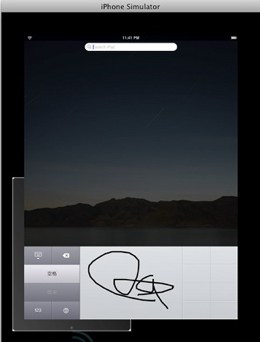
That’s right. With the release of the iPhone OS 3.2 to developers, it was only a matter of time before some hidden nooks and crannies were discovered. According to Engadget’s sources, there are "hooks to accept and decline a video conference, flip a video feed (which suggests a front-facing camera) and -- most importantly -- run the video call in either full screen mode or in just a portion of the screen."
The last piece is most interesting of all in that above paragraph because it suggests, despite what we all learned on the 27th, that there just might be the ability to run background apps in the software after all. Of course, it’s the camera and its potential that most people will be eagerly awaiting. But that’s not all.
Picture Source: Engadget
We also learn further on in the article that jailbreakers have gotten their mitts on the OS and have been busy digging into possible ways to exploit the iPad, much as they’ve done with the iPhone. From this they’ve discovered nascent SMS capabilities (?), possible stylus support, upload ability through Safari, multiple dictionaries including user-added entries , and a lot more.
Even better, it seems a number of these updates aren’t solely destined just for the iPad, so current iPhone users just might be seeing a little of this sweet new OS goodness as well. So if you’re like us, you’ll be plugging your iPhone into iTunes fairly regularly in the upcoming weeks, eager to get your own hands on some new dreamy iPhone OS features.
Apple reinventing file access, wireless sharing for iPad
Apple is dramatically rethinking how applications organize their documents on iPad, leaving behind the jumbled file system and making file access between the iPad and desktop computers seamless.
In a move foreshadowed by the Newton Message Pad fifteen years ago, Apple’s new iPad jettisons the conventional shared file system and introduces a new, streamlined convention for working with document files that ordinary users should find much more understandable.
Outside of savvy computer users, the idea of opening a file by searching through hierarchical paths in the file system is a bit of a mystery. Add in the concept of local and cloud file servers and things really get confusing.
Apple has already taken some steps to hide complexity in the file system in Mac OS X; Spotlight search was supposed to make a file’s location almost irrelevant, while apps such as iTunes, iPhoto, and Photo Booth now present their databases of content in media folders within the open file panel rather that forcing users to slog through the underlying file system.
The Finder, iTunes and iPhoto also allow users to wirelessly share content between different systems via Bonjour-discovered file shares that pop up automatically whenever another system sharing files is sensed on the network.
The iPhone similarly abstracts away the file system entirely; there is no concept of opening or saving files, just a media library of Photos and file attachments that stay connected to their mailbox items. But the iPhone currently isn’t designed to do much more than view files.
iPad’s new document sharing model
With the iPad, Apple demonstrated new multitouch versions of desktop-class iWorks apps with user interfaces that need to open and save documents. There’s still no file system browser with open and save panels. Instead, each app displays the files it knows about at launch for the user to navigate through directly.
An iPad developer has revealed to AppleInsider how this new mechanism works, without also requiring that users learn about the complexity of the underlying file system. Rather than iPad apps saving their documents into a wide open file system, apps on iPad save all their documents within their own installation directory. Delete the app and you’ll clean out all of its related files. This is how the iPhone OS already works.
Additionally, iPad apps can now specify that their documents be shared wirelessly. With that configuration, the iPad will make available each apps’ documents, allowing the user to wirelessly mount their iPad via WiFi and simply drag and drop files back and forth between it and their desktop computer.
On the desktop system, the iPad will show up as a share containing a documents folder for each app that enables sharing. For example, a user with iWork apps will be able to wirelessly connect to their iPad as if it were a directly connected drive, and simply drag spreadsheet, presentation, or word processing files between their local system and the mobile device as desired.
Documents copied to the app’s shared folder will be graphically presented by the app when it launches, sparing users from having to figure out where to look for their document files and avoiding any need to sort through different kinds of documents. The document listing also presents each file as a large preview akin to Quick View on the Mac OS X desktop.
And iPad app’s documents can be presented in any way that makes sense, depending on how many and what kind of documents the individual iPad app uses. Apple demonstrated its Work apps scrolling through a quick list of documents, while its iBooks app presents its various digital books as titles in a virtual bookshelf.
Just like the iPhone, the iPad will sync some apps’ documents via either iTunes or MobileMe, including photos, music, movies, TV shows, contacts, calendars, and bookmarks.
Battery-saving tips for laptops and netbooks
Laptop batteries are a cruel tool to put your faith in. They’re heavy, expensive, and will, by nature, run out and become less effective over time. Then again, they’re how you get work done away from the wall socket, and they can be made, if not perfect, at least better performing.
If you haven’t already, get to know Windows and Mac OS X’s built-in power management utilities, which are easy to locate by typing "Power" into your Start menu or Spotlight search box, respectively. In both systems, you can customize power schemes for best performance (cranking on Photoshop), balanced (web browsing for a good while), or best battery life (20 percent battery and you must grab your boss’ email). You should also set up your own custom power scheme with your preferred screen brightness, screen and hard drive time-outs, and other criteria--you might just be more frugal than you know.
Once you’ve set up those schemes, you’ll want to make them accessible, beyond having to right-click on the power icon on the taskbar and head back into your power management scheme. Create a shortcut on your Windows desktop, and in its Properties, have the shortcut point to powercfg /setactive "Name of your power plan", substituting whatever you named your power plan inside the quotes. With that shortcut set up, you can keep it on your desktop, pin it to your Start menu, or assign a keyboard shortcut to switch it on--maybe Ctrl+Alt+B for your "Battery Saver"?
In Windows 7, you can get a more detailed report on what you could be doing better to save energy. Hit the Start menu, type in cmd, and right-click on the Command Prompt option that appears. Select "Run as Administrator," and at the prompt that appears, type in powercfg-energy. Windows will look at your computer running for about 60 seconds, then generate a report on what’s using energy and how. Type in energy-report.html, and Internet Explorer will open up with a full report, detailing how your processor scales (or doesn’t), how your hard drive and fans operate, and all the way down to when USB devices suspend themselves.
On both Windows and Mac laptops, the biggest energy hog, hands down, is the screen. If you know you’re going to be writing or coding for some time, invert your screen colors (Alt+Left Shift+Print Screen on Windows, Ctrl+Option+Cmd+8 on a Mac) and knock your screen brightness as low as you can, while still being able to read your text. Hit the same keyboard shortcut to kick your screen back into normal, not-scary-Tron-like mode.
Fujitsu could battle Apple over ownership of iPad name
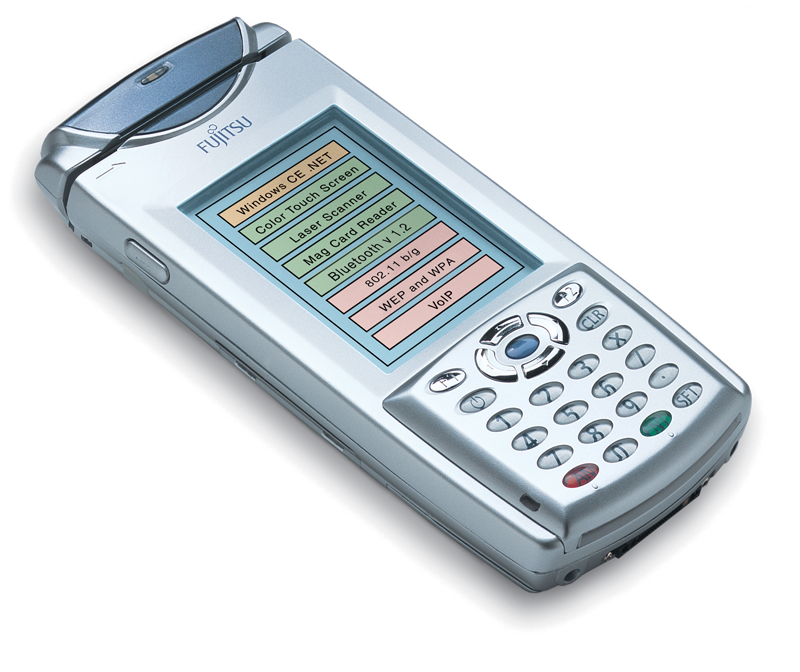
When Apple formally introduced its touchscreen tablet as the iPad Wednesday, it was not the first tech product to carry that moniker -- Fujitsu released its own mobile, touchscreen 'iPAD' in 2002.
Speaking with The New York Times, Masahiro Yamane, director of public relations for Fujitsu, said it is the company's understanding that they still own the name 'iPad.' Fujitsu is currently consulting with its lawyers over the next steps it may take.
It could become a similar situation to 2007, when Apple formally introduced the iPhone, only to be sued days later by Cisco, which owned the rights to the name. The Linksys iPhone was released just three weeks before the Apple iPhone was introduced at the Macworld San Francisco keynote in early January 2007.
Just over a month later, Apple and Cisco settled their dispute, with both companies retaining the right to use the iPhone trademark on products throughout the world. Terms of the deal were confidential.
The Windows CE .NET-based Fujitsu iPAD has a 3.5-inch color touch screen, Bluetooth connectivity, Wi-Fi, and is capable of VoIP communications. It also sports a laser scanner and Mag Card reader, and is powered by an Intel processor. It costs around $2,000.
Evidence of the potential dispute first surfaced last week, when Apple filed several requests asking for additional time to present evidence opposing Fujitsu's trademark application for the 'iPAD' name. Apple began the process in Sept. 2009, and has continued to ask to have the option to oppose the name. The extension was granted, and Apple has until Feb. 28 to make its case.
Fujitsu abandoned the trademark in early 2009, only to reapply last June. The Times also noted other iPads around the world: German company Siemens sells 'iPad' engines and motors, and a Canadian lingerie company makes 'iPad' padded bras.
Previously, a company known as IP Application Development filed trademarks for the IPAD name in New Zealand, Australia and Trinidad and Tobago. Apple was also revealed to be behind Slate Computing LLC, which obtained possession of the iSlate trademark.
iPhone developer agreement hints at new version of iPhone OS
An unintended update to the iPhone Developer Program License Agreement went live Tuesday with a placeholder referencing a Jan. 27 launch, suggesting an updated iPhone OS could be presented at Apple’s product unveiling Wednesday.
The placeholder can be found on the signup for for Apple’s iPhone Developer Program and reads: "Need to update this for the 27th launch."
With Apple’s Jan. 27th event drawing ever closer, this placeholder suggests that an updated iPhone OS may be presented along side the "confirmed" tablet.
According to McGrall-Hill CEO Terry McGraw, Apple’s tablet device will run a variant of the iPhone mobile operating system, which lends credence to the idea of an updated iPhone OS announcement Wednesday.
On Monday, analytics firm Furry released statistics that possible tablet prototypes were being used on Apple’s campus running iPhone OS 3.2, an unreleased version of Apple mobile operating system. This means that rumors of the tablet running iPhone OS 4.0 could be off base.