Beyond HandBrake’s defaults
Filters Normally you shouldn’t have to touch the settings found in the Filters area if you’re working with a movie ripped from a commercial DVD. If your source material is made up of TV shows or animation, however, or comes from a disc you’ve created from movies you’ve shot, you might find some of these settings helpful.
The Detelicine option switches on an inverse telecine process. Telecining is the act of converting film to video and adding frames in the process (because film runs at 24 fps and NTSC video uses 30 fps). The detelicine process removes those extra frames so your video plays back smoothly. Generally, only animation and TV shows require this setting but there’s no harm in leaving it on all the time as it will have no effect on content it can’t work with.
Take a gander at your video’s preview image. If you see jagged lines where hard edges should be, the video is interlaced. Interlacing is a technique used in standard-definition TV for painting images in a series of odd and even lines. Interlaced video displays these jagged lines on a computer screen and some high-definition TVs. To remove it, you must deinterlace the video. HandBrake offers a couple of options for doing this.
First, choose Fast from the Deinterlace pop-up menu. If the jagged lines go away, you may want to deinterlace your video. The Fast setting is indeed faster, but you lose quality. To produce better results (though you still lose some quality), choose Slow or Slower.
Used the word “may” in the paragraph above because HandBrake offers another option for dealing with these jagged lines—Decomb. This option searches your video and applies deinterlacing only to those frames where the lines are visible. This helps maintain better overall video quality because not everything is deinterlaced.
If your source video is really grainy, give the Denoise option a try. This filter is a trade-off. You may lose some of the grain but you also lose overall quality (gain some blocking in the Medium and Strong settings, for example). There are three settings—Weak, Medium, and Strong. Weak is the first to try on a sample (a chapter, for example). You have to try it on a sample because its effects aren’t reflected in the preview image.
And finally, there’s a Deblock slider that can get rid of blocky artifacts. Again, you won’t need this setting if your source is clean. If the source is poor to begin with, this is something to try on a sample chapter.
Audio & Subtitles
The Audio & Subtitles tab is the means for choosing which audio tracks you’d like to encode as well as placing subtitles on your encoded movies.
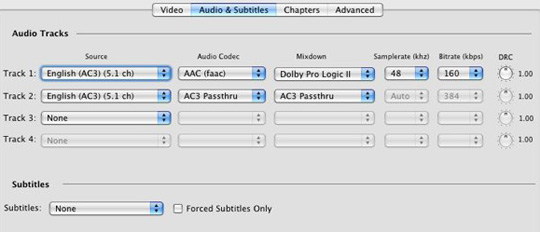
Many commercial DVDs contain multiple language tracks—English, French, and Spanish, for example. You can reduce file size by stripping out the tracks you don’t want. HandBrake will choose the English track by default and exclude others, but you can optionally add them back by selecting additional language tracks from the Track 2, Track 3, and Track 4 pop-up menus.
Within the Audio Codec pop-up menu you can choose the codec used for the movie’s audio—the default is AAC, but you can maintain the source movie’s existing audio encoding by choosing AC3 Passthrough from this menu. File size will be larger, but the sound will exactly match the quality of the original. Even if you go with the default AAC (faac) setting, you can choose the output format—Mono, Stereo, Dolby Surround, Dolby Pro Logic II, or 6-channel Discrete. Choose Dolby Pro Logic II and the audio will play on both stereo and surround-sound systems (though it’s not true surround-sound). The setting you choose should match the gear you intend to play the movie on.
If you don’t mind the larger file, you can add both Pro Logic II and AC3 pass-through tracks using the Track 1 and Track 2 pop-up menus so that you have a movie that will play in stereo on your iPod or in full surround-sound on a device such as an Apple TV.
With HandBrake you can add subtitles to your encoded movies if they’re available on the original source DVD. Note, however, that you can’t turn them off when viewing the movie—they’re burned into the movie.
Chapters
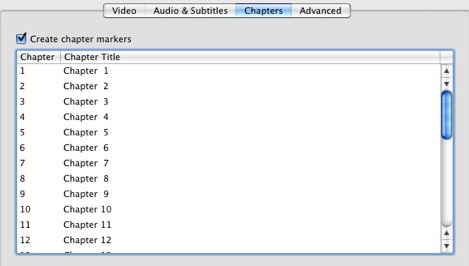
HandBrake takes note of a source’s chapters and, by default, adds chapter markers to videos it encodes. The default is to list them by number—Chapter 1, Chapter 2, etc. You’re welcome to double-click on a chapter and type in a name of your own—Phase One: In Which Doris Gets Her Oats, for example. If you’d prefer to do without chapter markers you can turn off that option in this tab. Note, however, that chapters add no bulk to the file and make navigating through a movie far easier.
Advanced
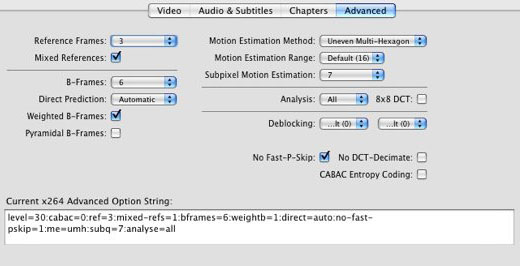
HandBrake’s Advanced tab is an area where many mortals fear to tread due to some pretty arcane options. While we don’t fear it, the choices you might make here are meant for only the most hard-core tweaker. Should you wish to become one of those tweakers, Urge you to carefully read through x264 Options in HandBrake.
The risks
The advantage of using HandBrake’s default settings is that they produce videos that absolutely will play on their intended destination—on your iPod, iPhone, or Apple TV, for example. If you go the manual route and tweak your own settings, it’s possible that you’ll choose a bit rate or size too large for a particular device.
For this reason, you should pay careful attention to the video playback specifications for the device you wish to encode for. Apple publishes these specifications for the iPod and iPod touch, iPhone, and Apple TV on its Web site.