Manipulate PDFs Using Preview
The advantage of PDF files over other formats is that they precisely preserve your page layouts, even embedding fonts that other people’s computers may not possess. Apple’s versatile Preview application lets you view PDF documents, but, as you might expect, you can’t edit the text in any way. You can, however, use Preview to modify the pages themselves. For instance, you could elect to keep just a specific section, reorder the pages, delete some, and even insert others. Preview is full of PDF flexibility, as you’ll see in the following steps.
1. PDF Creation
Hopefully, most of you already know this, but Mac OS X has been able to convert any file from any program into a PDF since version 1.0. It isn’t entirely obvious until you’ve done it a couple of times--there isn’t a Save As PDF command in the menubar, but that’s because the feature is in the Print dialog. To make a PDF, go to File > Print. Click the PDF button at the bottom-left to launch a pop-up menu and select Save As PDF.
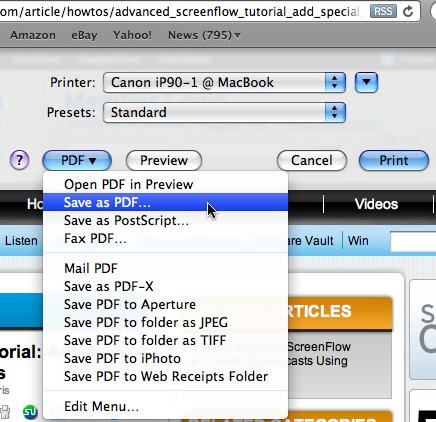
Show a Mac newbie this trick. They'll probably buy you lunch.
2. The Select Tool
Saving as a PDF is a great way to archive documents, especially webpages. However, the PDF file will contain everything on the original page--images, toolbars, and all those annoying ads. To clean up your PDFs a little, you can use the Select Tool to grab just the portion you want. With the PDF open in Preview, go to Tools > Select Tool (or use the Command-3 keyboard shortcut).

The Select Tool will let you boil down a PDF to just the essentials.
3. Copying a Selection
Click and drag on your PDF page to create a selection box. You can alter its dimensions by using one of its corner handles or even drag the whole box to another location. Once it’s over the correct portion of your page, go to Edit > Copy. Pasting doesn’t work in Preview. Instead, go to File > New From Clipboard (Command-N) to create a new document that contains everything you just copied.
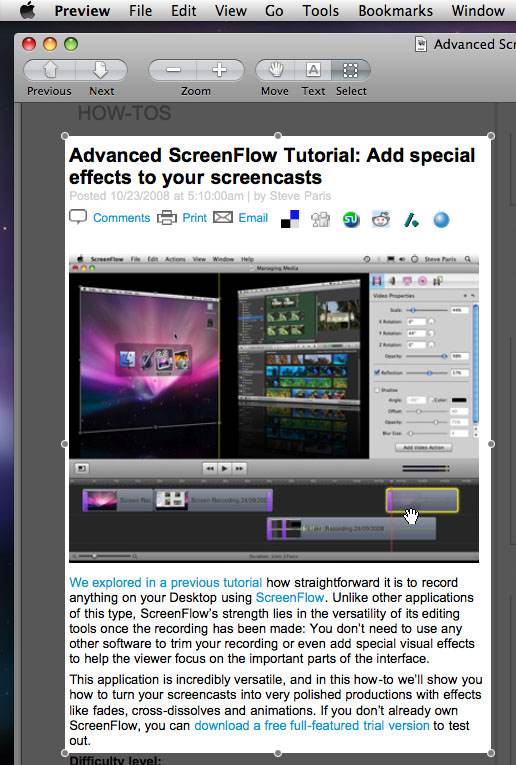
Just the good stuff, please!
4. Copying Text
Preview also lets you copy text from a PDF file to the clipboard, for pasting words into the text-editing app of your choice, with formatting intact: Just go to Tools > Text Tool (Command-2) and select and copy text (Command-C) as normal. But you can’t use Preview’s New From Clipboard command here. Instead, open an app like TextEdit and paste your selection in (Command-V).

The New From Clipboard command is grayed out, but you can use the Text Tool to copy and paste text into a word-wranglin' app.
5. Collating Documents
Repeating the New From Clipboard action from step 3 creates a one-page document for each selection you paste into a new PDF. But it’s easy to combine these files into one. First, click the toolbar’s Sidebar button (top-right), or go to View > Sidebar or press Shift-Command-D. With two PDF files open, click and drag a thumbnail from one sidebar to another document’s sidebar, either above or below the existing thumbnail.
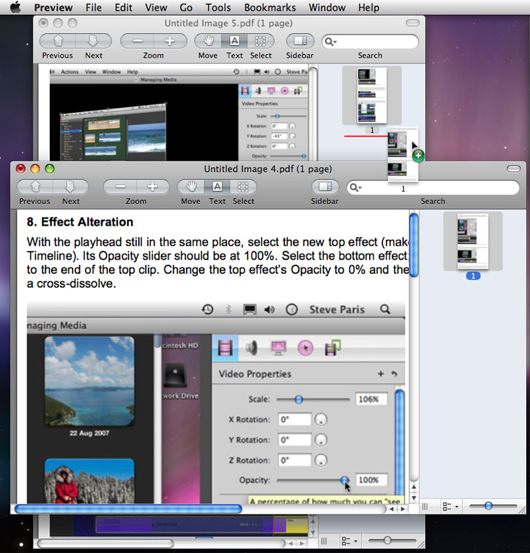
Combine PDF pages by dragging their thumbnails into one document's sidebar.
6. Reordering Pages
If doesn’t matter much if you’ve imported your pages in the wrong order. You can just drag the sidebar’s thumbnails into the correct order. A red line will appear to let you know where the page will end up once you release the mouse button.
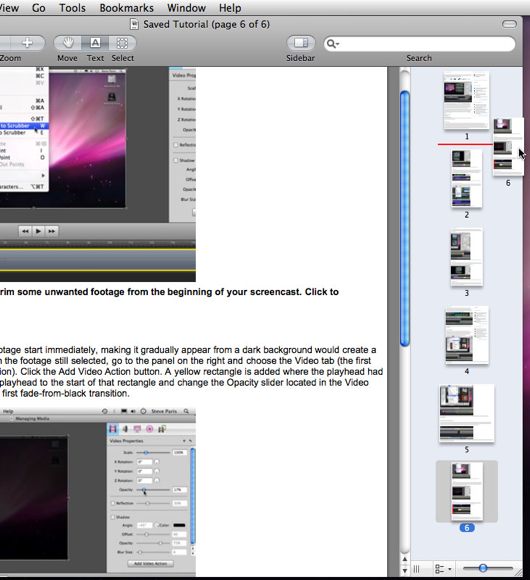
Select multiples and drag them to their place. You're ALL out of order!
7. Removing Pages
If you no longer need a specific page, you can delete it in one of two ways: either go to Edit > Delete Selected Page or use the Command-Delete keyboard shortcut. Just like adding pages or reordering them, you can delete multiple pages at once. Command-click multiple thumbnails to select them, then use the delete command of your choice.
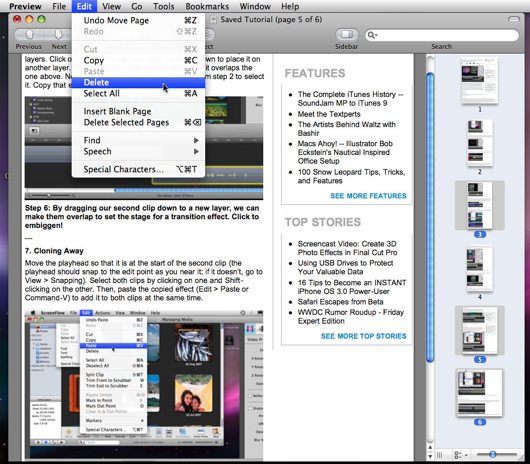
You can undo a delete, by the way.