Recording Speech with GarageBand 2009
After burning some time to play around with GarageBand 2009, Now show you a new skill: recording speech.
Although it sounds simple, there are many hidden tricks to get clean and nice recorded speech. Hope this article can help you in your future speech recording.
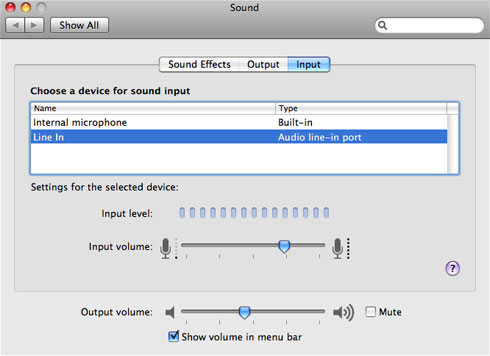
Switching to Audio Line-In Port
By using Audio Line-In Port, you will be able to record the sound right from the microphone, reducing most of noise from environment.
Here are the steps to switch to line-in port:
- Open System Preferences…
- Click on the speaker icon to go inside Sound Preferences Pane
- Choose the Input tab and switch the device for sound input to Line In
- You can check the changes by connecting microphone to your Mac and observe the input level (sound will be taken in only if you speak to the mic)
Recording with GarageBand
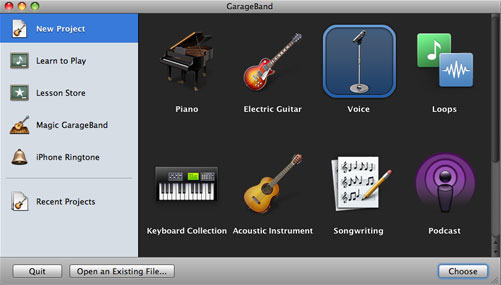
Upon launching GarageBand, you will be asked to choose what type of recording you want to make. In the case of recording speech, choosing Voice from the menu will be the most suitable.
Since we are not going to record a song, you can choose anything for the tempo.
After going into the Editor Window, these things are essential to record speech with GarageBand (instead of recording song):
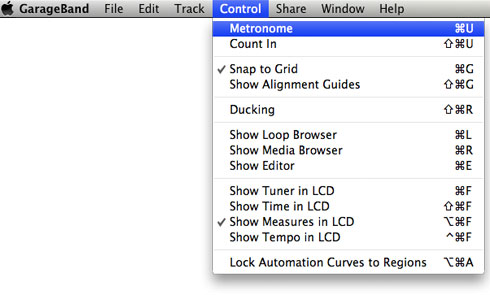
- Turn off Metronome (command-u)
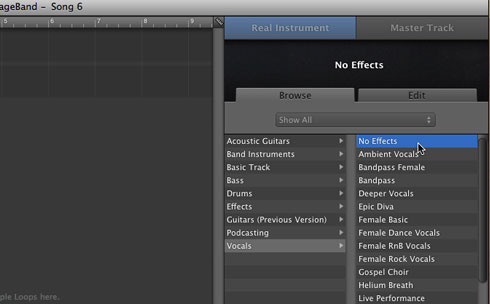
- Switch to record with No Effects from Track Info Pane on the right side of the window
- Change Input Source accordingly. For my MacBook, it's Mono 1 (Built-in Input)
- Enable Automatic Level Control by ticking the checkbox
- Display Timer in LCD instead of Measures by choosing Control → Show Time in LCD (command-shift-f)
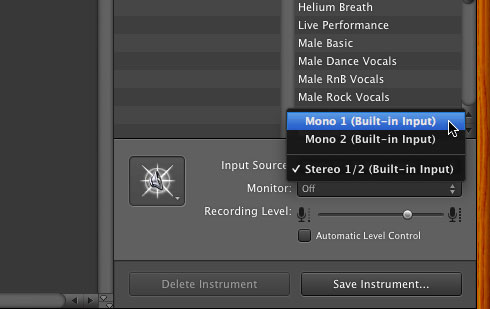
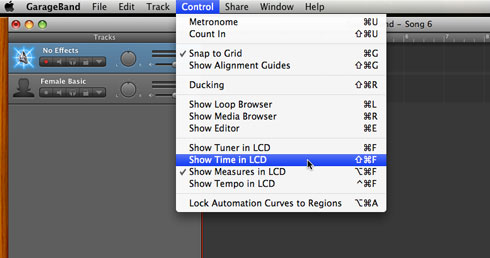
After setting up all the essentials, you can start the recording by pressing R to record and Space to pause.
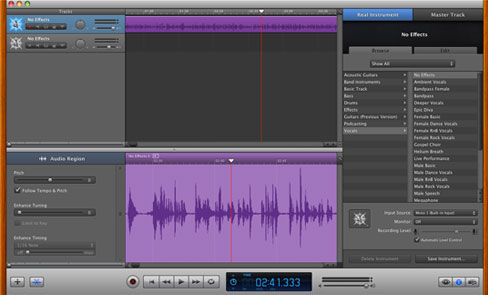
Consider the recording has finished here, let's move on to next step.
Enhancing the Result
Though we have done many preventions to omit the noise, some may still be present in our speech recording. Thus, we need to add some effects to make our speech recording crystal clear.
To add a new effect, open Track Info Pane, go to Edit tab and Click on the empty spot that says, "Click here to add an effect".
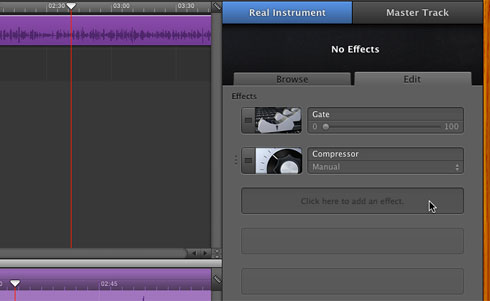
Speech Enhancer
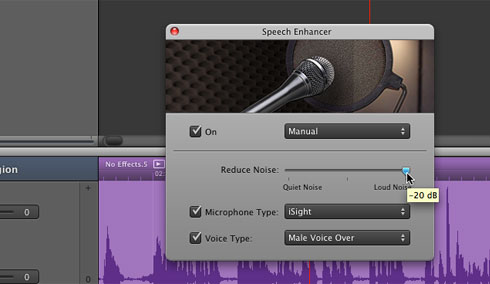
This effect is very useful in reducing noise. Not only it has the preset to suit female/male voice, but also it can be stacked in the case of having loud noise.
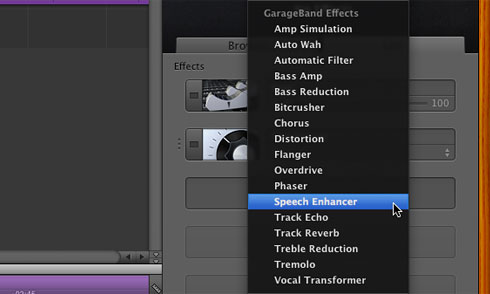
To manually set the effect, just click on the icon and a new pane will appear right in front of you.
Bandpass Filter
Some people might have annoying high-pitch voice; Some might have boring low-pitch voice. You can adjust it with GarageBand by using AUBandpass.
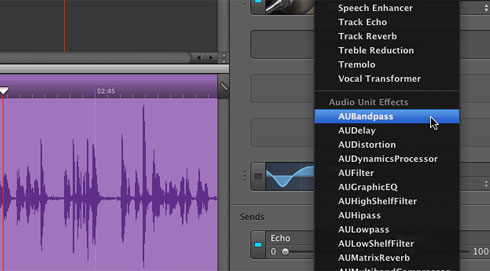
For this, it's essential to use manual adjustment: use your hearing ability and adjust the slider of center frequency. Note that I usually use around 600Hz (different speakers use different center frequency).
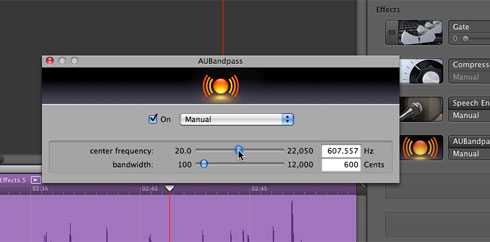
Until this point, you should be able to remove most of unwanted noise. And the next step is to export the recording.
Exporting to MP3 Format
To save your recording in MP3 format, choose Menu Bar → Share → Send Song to iTunes.
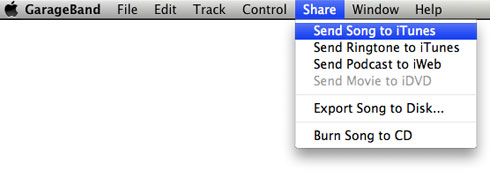
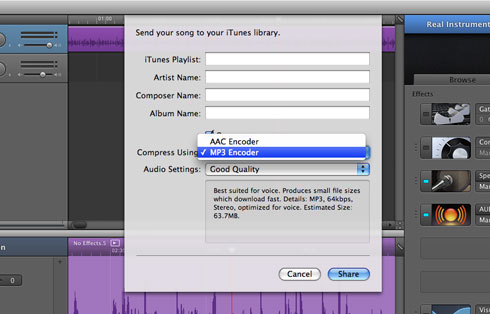
In the appearing pane, use MP3 Encoder as the compressor and Good Quality is the most suitable for speech recording.
Sorry for my long writing, hope you don't mind reading it. If you've something to express it, feel free to drop it on the comment box provided.