How to Share Encrypted USB thumb Drives Betwwen Mac and PC
We all face the reality of identity theft these days, and companies have to worry about intellectual property theft as well. Indeed, just about anyone can fall victim, so it's important to protect both your personal and work data with data encryption. USB thumb drives are particularly vulnerable: Everyone's using them for transporting files hither and yon, and these wee portable drives are so easily lost. God forbid your shopping lists (or your patent applications... or your incriminating office party photos) ever fall into the wrong hands.
In the steps that follow, we'll show you how to use an application called TrueCrypt, which allows you to store encrypted data on USB thumb drives that can be mountable on both Macs and PCs. This protection scheme is especially useful for IT folk who work on both platforms, and want to carry their data securely on a single shareable USB thumb drive.
Note: Using the Windows NTFS file system is essential for supporting USB thumb drives larger than 4GB.
What you need:
- OS X 10.5 or later Windows XP or later
- A downloaded copy of TrueCrypt 6.2 for Mac (now includes macfuse for NTFS support on Mac OS X) or PC
- A blank USB thumb drive. Any size will do, but we suggest you use a drive larger than 4GB.30 to 60 minutes or more of free time.
1. Install TrueCrypton your Mac or PC
Note: During the Mac installation, you should answer affirmatively for any and all license agreements that appear. If you don't, the installation will be aborted.
2. Prepare Thumb Drive to use the Windows NTFS Filesystem
Insert the USB thumb drive into an available USB port on your Mac or PC.

On a Mac: Launch /Applications/Utilities/Disk Utility and click the thumb drive in the left pane. Select Erase, change the Volume Format to Windows NT Filesystem, enter the drives name (e.g. SecretData), and click the Erase button. The thumb drive will be erased (this may take some time depending on the drive's capacity).

On the PC: If the thumb drive has not been formatted previously, you should be prompted automatically to format it after it is inserted. If not, then open My Computer on your PC and locate the thumb drive in the drive list, and right-click the drive and select format. Next, make sure that File System reads NTFS, and enter the drive's volume label or name (i.e. SecretData). Do not check Enable Compression. Selecting Quick format is optional. Finally, click the Start button. The thumb drive will be formatted (this may take some time depending on the drives capacity).
3. Set Up a Shareable TrueCrypt Encrypted Volume on Your Mac or PC
Launch TrueCrypt
Click Create Volume to launch the TrueCrypt Volume Creation Wizard

Select "Create an encrypted file container" and click Next
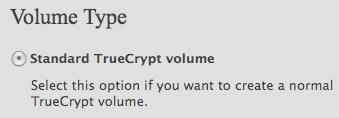
- Select Standard TrueCrypt volume, then click Next.
- Click "Select File..." and choose your newly NTFS formatted USB thumb drive as the location.
- Enter the name of your TrueCrypt volume and click Save.
- Back at Volume Location, verify the information presented and make sure "Never save history" is checked.
- For Encryption Options, click Next to accept the defaults.
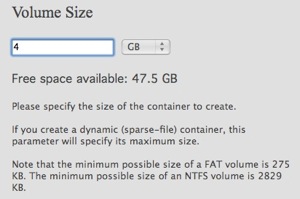
On the Volume Size screen, enter the size of your encrypted volume in MB or GB and click Next. You'll note that some advice about minimum and maximum size is also offered. We suggest you leave at least 1GB of disk space free. You'll see why in a minute. Another tip is to only make the drives 4GB in size. Why? Because they will fit on a DVD for backup purposes! They will also be easier to move around. Ultimately, the size of the encrypted volume is limited by the suggested sizes and the size of your USB thumb drive.
Enter the password for your encrypted drive. We recommend a password at least 15-20 characters in length using letters, numbers and special characters.
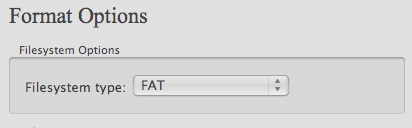
UnderFormat Options, use Filesystem type: FAT and click Next.
You'll see Random Pool appear under Volume Format. Move your mouse around inside the TrueCrypt window for as long as you can stand it. Longer is better, and when satisfied click Format.
When the format is complete, and it went well, you will see a message to that effect and should click OK.

When it's done, click Exit. Otherwise, click Next to create more TrueCrypt drives.
4. Mount a TrueCrypt Encrypted Volume on Your Mac or PC
Launch TrueCrypt.

Click "Select File," and browse to the location of your TrueCrypt volume, select it, and Click Open.
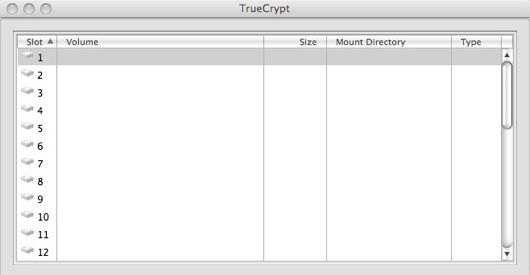
Select an empty volume slot in the TrueCrypt window by clicking it once.

Click Mount.
Enter the password for your TrueCrypt volume, do not check any of the check boxes and click Ok or press Enter.
5. Install TrueCrypt on Your USB Drive So You Always Have It With You.
Earlier we mentioned that you should leave at least 1GB free on your USB thumb drive. The reason for this was so that you could copy both versions of the TrueCrypt application, and any other applications you might need, onto that drive. This way, you will have TrueCrypt ready to run, or to install, if needed when away from home or work, or using another computer. If you have TrueCrypt on a thumb drive, you'll always have a copy of it, even if the machine you're using doesn't have Internet access.
On a Mac, you just need to install TrueCrypt, and once that is done, drag a copy of the application onto your USB thumb drive, along with a copy of the original installer for TrueCrypt.
On a PC, you can copy the TrueCrypt installer to the USB thumb drive, but to copy an executable copy of the application onto that drive for the PC to use, you must perform the steps described in the document Traveler Mode of TrueCrypt.