10 Things Every Final Cut Pro User Should Know
6. Arrange
Every so often your windows in Final Cut will go haywire and rearrange themselves or disappear entirely. Whether you switched screen resolutions, switched monitors, or opened the project on a different computer, there is only so much space available on the back of milk cartons, so the next best thing is Arrange.
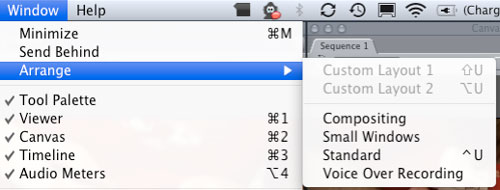
Click on Window in the menu bar, select Arrange to reveal a secondary down down menu. There are several choices here, if you just need to get back to the simple default layout, click on standard, this should get all your windows visible at least. If you have customized your layout, this is also the place to save it so you can call it back up easily in the future.
7. View Choices in the Browser Window
Icons and lists, can they ever learn to get along? If only they had a place where they could work side by side, where the best aspects of both could be used to their full potential. There is such a place, it’s called the Browser. The Browser is the window that holds all your imported files, video, audio, unicorns, whatever you happen to have in there.
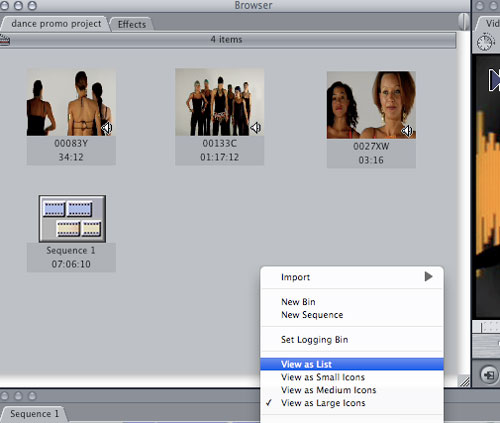
Ctrl or right click in the grey area of the Browser window, a contextual menu will appear where you will find four viewing choices, View as List, Small Icons, Medium Icons and Large Icons. The list option is great if you have a large amount of media or have carefully named and organized your assets. The Icon Views let you see the first frame of your clip, and even better, you can open that clip in the viewer and set an in-point anywhere in the clip and that will now become the thumbnail you see in the Browser. With just a glance at the thumbnails in the Browser you can find the clip you are looking for.
8. Color Corrector
The color corrector is hands down the effect we use the most. The quality or “look” of your footage can live or die by the color corrector. Whether your white balance is a bit off and the people in your footage look like Smurfs, or you want your home videos to look just like Sin City, the color corrector is your first stop. There are a couple different ways to find the color corrector.
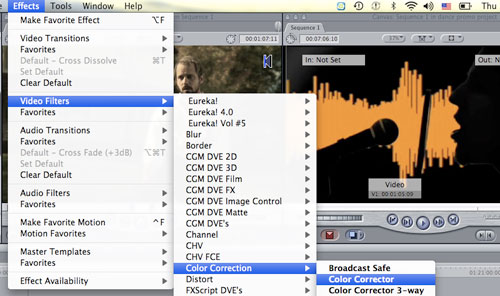
First, select the clip you want to apply it to in the timeline by double clicking it, next go to Effects in the menu bar and select Video Filters/Color Correction/Color Corrector. In the Viewer, above your clip you will find a new tab, Color Corrector, click on this. Now you see the Color Corrector controls.
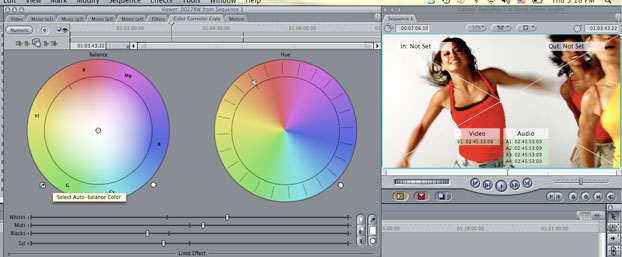
Let’s fix that white balance problem, in the timeline drag your playhead until you have a frame of video that contains something “white” or something that is supposed to be white, this should show up in the Canvas window. Now in the viewer click on the eye dropper, or select Auto Balance-Color, button below the Balance circle on the left. When you move your cursor over the Canvas window it will change into the eye dropper, click on an area in your clip that should be white. This will tell Final Cut Pro that this area should be white and it will adjust the color of your footage to try and represent that.
If it’s still not quite right, grab the small circle in the center of the Balance window with your cursor and drag it in the direction of the color your footage needs more of. This is just the tip of the iceberg for the Color Corrector, there are tons of toys to play with here, you can individually change the white, mid and black levels of your media, similar to the Levels adjustment in Photoshop, as well as the saturation levels.
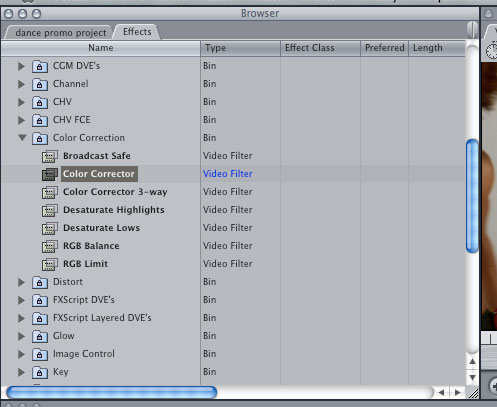
You can also access the Color Corrector through the Effects tab in the Browser, expand the Video Filters section and then the Color Correction section to find the effect, from there you can double-click it or drag it onto a clip.
9. Composite Mode
Is your video just not “weird” or “cool” enough?
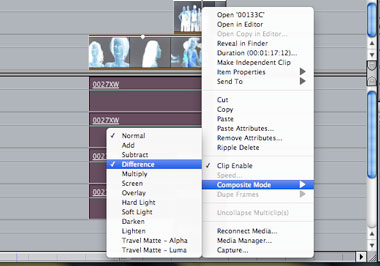
Or maybe you are just bored, either way, stack a clip on top of another in the Timeline, now Ctrl or right click on the upper clip, in the contextual menu choose Composite Mode. Inside there are quite a few options, each option tells the clips how to interact with each other, giving you a wide range of wild effects.
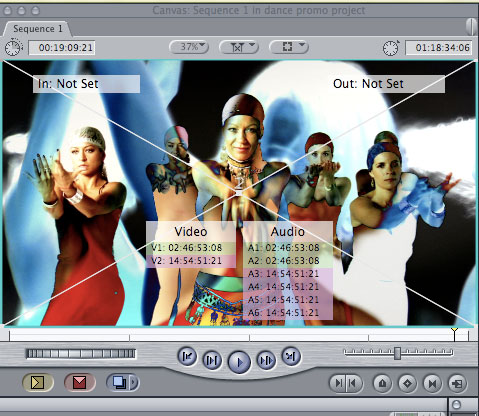
Make sure your play head is over the clips you are working on in the Timeline to get a preview of the effects as you try them out.
10. Export-Using Quicktime Conversion
You have edited your footage, piled the effects on, layered your video and created the finest Smurf zombie fan-fiction film of all time. Now how do you get it out of the clutches of Gargamel...err...Final Cut Pro?
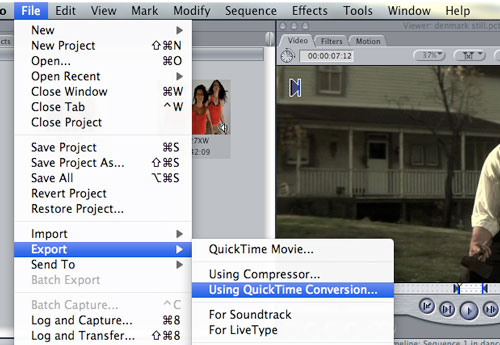
Choose File from the menu bar, select Export then, Export Using Quicktime Conversion. QuickTime Movie is more suited to exporting full resolution versions of your project. If you are looking to put this masterpiece on the internet, lets take a look at the Using QuickTime Conversion option.
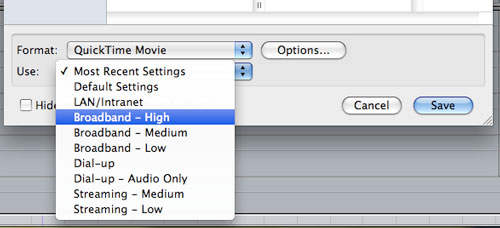
When you choose this option a Save window will pop up, let’s concentrate on the Format: and Use: options toward the bottom of the window. Leave the Format option on QuickTime and click on the Use pull down menu. Under the list of options, Broadband Medium or Broadband High are both good choices. They are both preset to use the H.264 codec, which produces nice sharp video, great audio and small file sizes. Now youtube it and prepare for fame and riches.