10 Simple Steps to Better Photoshop Performance
6. Use Thumbnails In Your Palettes
Displaying preview thumbnails in the Layers, Channels, and Paths palettes will cause Photoshop to consume some more of your RAM as it will be constantly updating the thumbnails to reflect the changes you will be doing in your project. The memory consumption will keep growing with the amount of thumbnails you have opened at the same time as well as their size.
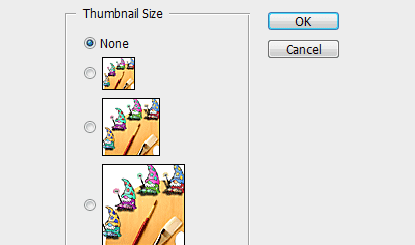
You could use the smaller thumbnail size or no thumbnail at all to increase your Photoshop performance. To do so, in each palette, select “panel options” from the palette menu as it is shown on the picture above and select the smallest thumbnail size or “None”.
7. Learn How To Use Purge
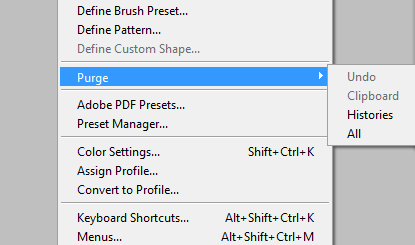
When you are working on your images, Photoshop stores image data for the Undo, Clipboard, and History features. This data consumes memory, especially if you have been working for a while and have a high number of History States defined (see Point 1 for more on History States).
To eliminate that extra image data consuming your RAM, go to: “Edit > Purge > ( option )”. Keep in mind that clearing History will remove all the history states saved previously and you will not be able to undo your latest actions.
8. Set Maximize PSD And PSB File Compatibility to Always or Ask
Maximize PSD and PSB File Compatibility increases the size of your file by attaching a flattened copy of your image when you save your image. A small amount of extra data is included in the file when you choose this option that ensures that PSD and PBS files saved in Photoshop will open in previous versions.
Additionally, if you want to use the Edit in Photoshop feature in Photoshop Lightroom, this option needs to be on. To change the Maximize File Compatibility option “Choose Photoshop > Preferences > File Handling”.
9. Don’t clutter your Photoshop
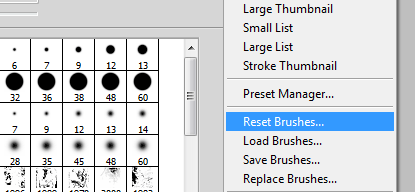
Of course, you can easily find an enormous amount of free stuff to add up to the default Photoshop brushes, fonts, patterns, etc. but that doesn’t mean you need to download every freebie that comes in your way. Keep it simple! Having too many plugins and other resources installed in Photoshop will greatly decrease performance. Most top designers use a small selection of fonts and brushes that define their style and that can be used in a great amount of ways for literally millions of different results.
10. Reset Default Settings
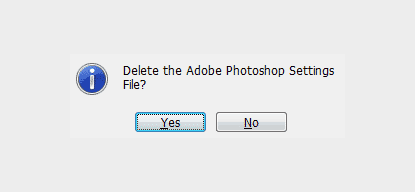
If you are using a shared machine for your Photoshop needs there is a little Photoshop start-up trick that may come in handy. When the application is launching, if you press and hold: Alt + Control + Shift (Windows) or Command + Option + Shift (Mac), a window will pop up asking you if you want to delete the Photoshop settings file, resetting all of the preferences to their default.
Further Resources
- Optimize performance of Photoshop CS4 on Windows XP and Vista
- Optimize performance in Photoshop CS4 on Mac OS
- Top 10 Killer Photoshop Combo Moves
Is time kickin’ your ass? Well, learn to defend yourself! Master these killer Photoshop keyboard combos and you’ll find yourself with more time for the important things (e.g. Facebook trivia questions). These combos assume you’re using Photoshop CS3 on Windows platform with default keyboard shortcuts. - Professional Tips for Improving Photoshop’s Performance
In this tutorial, you’ll take a look at the Photoshop Preferences to increase your Performance. Depending on the Photoshop version, features for working with 3D imagery, motion-based content, and advanced image analysis, greatly increase the requirements of both graphics and hardware. - 20 Time-Saving Tips to Improve Designer’s Workflow
Want to save some time? Of course you do! You are probably always looking for ways to do this faster and make that easier, it’s human nature! One of the best ways to save time is experience. So always stay hard at what you do and you will definitely save more than “just” time!