Control Your Mac from the Couch
Controlling a Mac is typically accomplished by sitting by the computer, mouse and keyboard in hand. But what if you want to access your Mac from another part of the house? Maybe you need to check on the progress of an encode without having to walk into your home office. Or you’d like to help your child understand how to work an application down in the playroom without leaving the study. Or you’ve just broken your leg and you wish you didn’t have to move from the sofa to control the Mac you’ve turned into a media center.
Command your Mac from the best seat in the house--without spending a dime on extra software.
What You Need:
- One Mac to be controlled remotely (referred to as the remote)
- Another Mac to access the first (referred to as the master)
- An iPhone or iPod touch
- An Airport base station or similar Wi-Fi network
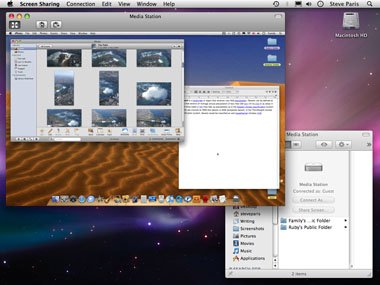
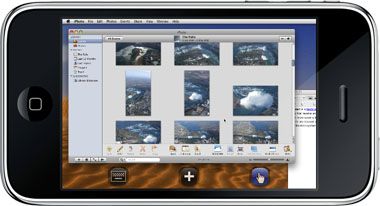
Control a Mac mini in your entertainment center via a MacBook on the couch or even an iPod touch.
Of the various ways to achieve these goals, each has its advantages and disadvantages. But best of all, none of the methods outlined here requires you to spend any money on software.
1. Where’s the Remote?
By far the easiest way to connect to your Mac in order to control your iTunes library is via your iPhone or iPod touch and the free Remote app. You can download it from the App Store either from iTunes or directly from your iPhone.
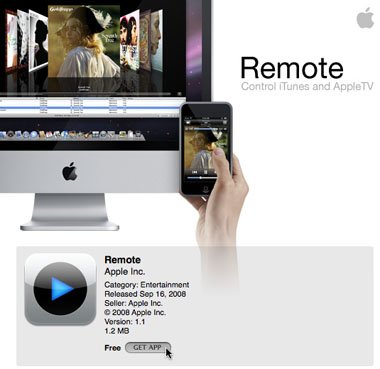
Download Remote from the App Store.
2. iTunes on iPhone
When launching Remote for the first time, you have to choose which iTunes library to connect to. If your Mac doesn’t show up, make sure it’s on and awake and running iTunes; the iPhone and Mac must also be connected to the same Wi-Fi network. The Remote app will display a 4-digit code. In iTunes on your Mac, select your iPhone or iPod touch in the Devices section of the sidebar. Enter the 4-digit code and your Mac and iPod are paired, letting you control your playlists, music, films, and TV shows with ease, wherever you are in your house. You can even create new playlists and modify existing ones.
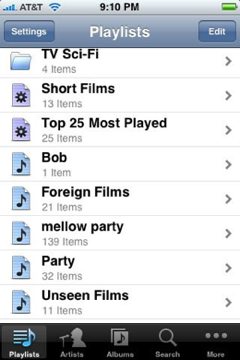
Pick a song, playlist, or video in Remote, and it plays in iTunes on your Mac.
There’s a drawback to this, though: iTunes has to be running for Remote to work, and if your Mac’s screensaver is on, playing a video won’t change the display. You’ll hear the film, but still only see the screensaver. Going over to the Mac and jiggling the mouse will solve the problem, but it kinda defeats the purpose of remotely controlling your Mac.
3. Say Bonjour to iChat
Another way to control a Mac is with another Mac, a handy feature when households have more than one computer. iChat comes with Mac OS X, and you don’t need to buy MobileMe to use it, especially if you’re talking to other computers on your local network.
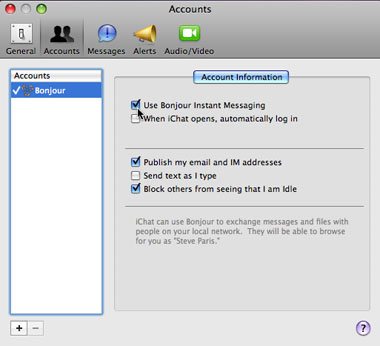
Turn Bonjour on in iChat on the remote Mac and the master Mac.
Launch iChat and go to iChat > Preferences. Select the Accounts tab, click the Bonjour account, and make sure the Use Bonjour Instant Messaging box is checked. Do this on both Macs. (If this option is grayed out, your account may be running with Parental Controls enabled; it’s a long-standing and well-known bug and there’s regretfully no fix for it, aside from using a different application like Adium, which is beyond the scope of this article.)