Control Your Mac from the Couch
9. Enabling More Sharing Possibilities
Lugging a Mac, even a laptop, around the house to control another can be cumbersome. Thankfully, you can also use your iPhone to achieve similar results. First, go back to System Preferences > Sharing on the remote Mac’s Sharing System Preference (as described in step 6). Select the Screen Sharing option and click Computer Settings. In the pane that drops down, check the “VNC viewers may control screen with password” box, type in a password of your choice, and click OK.
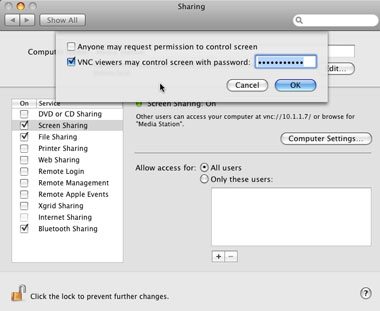
Remember the password, obviously.
10. Manual Addresses
Next, go to System Preferences > Network, select the service you use to connect to the Internet, and click the Advanced button. Select the TCP/IP tab and make a note of your remote Mac’s IP address. If you shut down your Mac regularly, you may wish to click the Configure IPv4 pull-down menu and choose Using DHCP With Manual Address. You can then assign your Mac a permanent IP address, rather than have a new one assigned each time you start it up (if you’re not sure what address to choose, just type in the current one). It might also be a good idea to assign permanent addresses to your other Macs as well to avoid potential conflicts in the future.
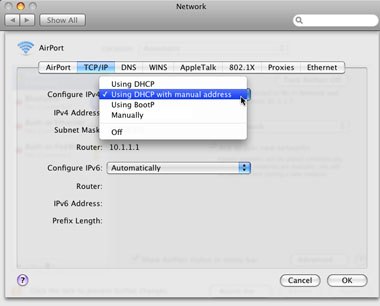
Use this option to assign your computer a permanent address on your local network.
11. Mocha for Your iPod touch
On your iPod touch or iPhone, go to the App Store, and install the free Mocha VNC Lite app. Launch it and tap the Edit Connections button. Choose one of the seven available fields. Fill in the IP address and the password created in step 9, and then make sure the Mac OS X Server option is switched on, in order to reveal a Command key when using the virtual keyboard.
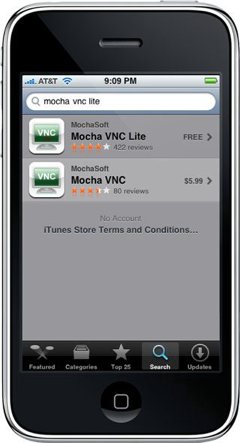
This app is the key to controlling your Mac from your iPhone.
12. Your Mac, on Your iPhone
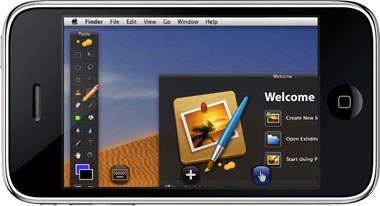
When ready, tap Connect, and you’ll be greeted with your remote Mac’s Desktop on your iPhone. It can take a little while to get used to it, the refresh rate is very slow, and it is also prone to crashing your mobile device, but you have your Mac on an iPhone with full control--launch applications, go to websites, move items around, anything you want. It’s even ideal to circumvent some of the deficiencies of the Remote application described in step 2.